Task
A player runs around, using the InVector’s basic motion controller. Press some keys, and UIs appear that have their own input mappings. The input contexts are independent, so an input in one context (like play) can do something different in other contexts (like a UI).
Solution
The key is to have exactly one game object taking input at any time. Which game object is taking input changes as the game runs.
Here’s the hierarchy.
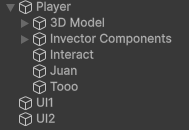
The Player is the thing the InVector wizard made. Two UIs follow it.
Character controller
The controller manages its own input, including keys that show UIs and perform other actions custom to the game. Other input is disabled.
Here are the Player properties.
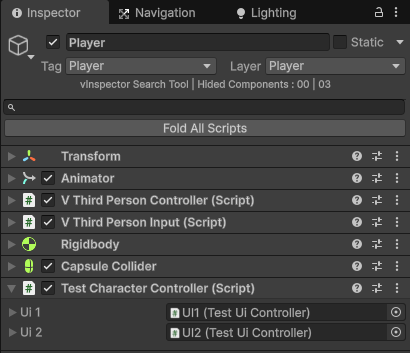
The last component is a custom script that knows about the UIs. We’ll look at it later.
Player has some child game objects:
We care about the last three. Each one defines inputs that are in addition to the movement inputs the InVector controller is using. They are custom to the game. Here’s Interact:
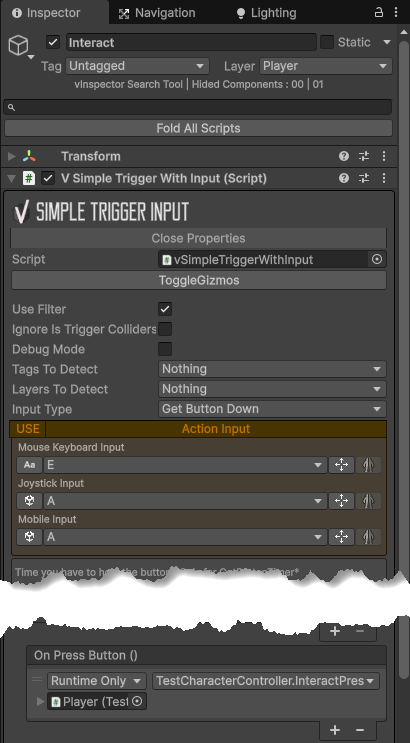
Simple Trigger Input is part of InVector’s package. It defines three inputs on different devices that map to the same event. It calls a method on the Test Character Controller component on the player.
There are two others as well.
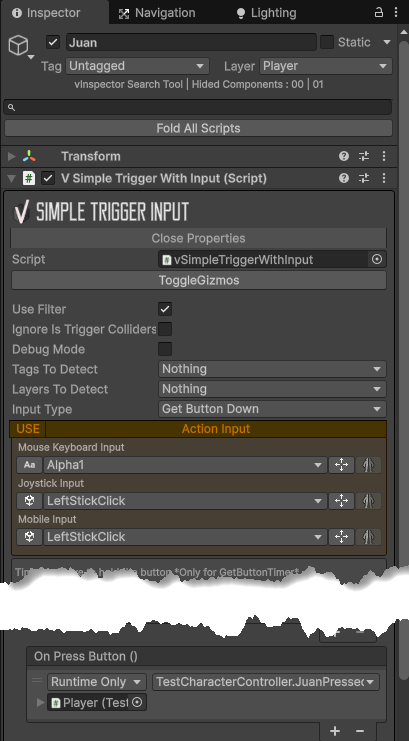
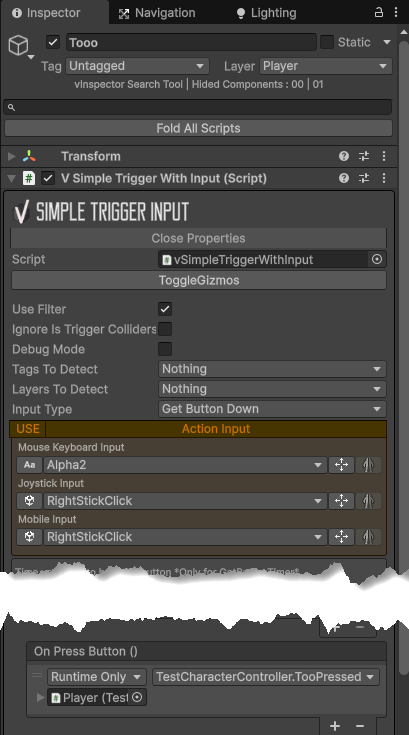
All three define a keystroke, as well as game pad/joystick and mobile inputs. They all call a different method of Test Character Controller on Player.
UIs
The two UIs were made in UI Toolkit. Here they are at runtime.
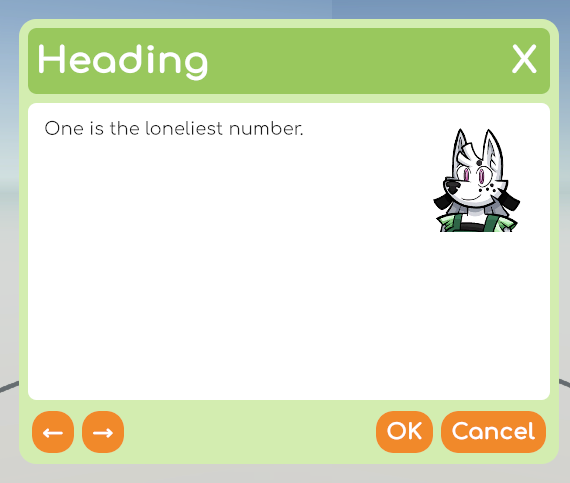
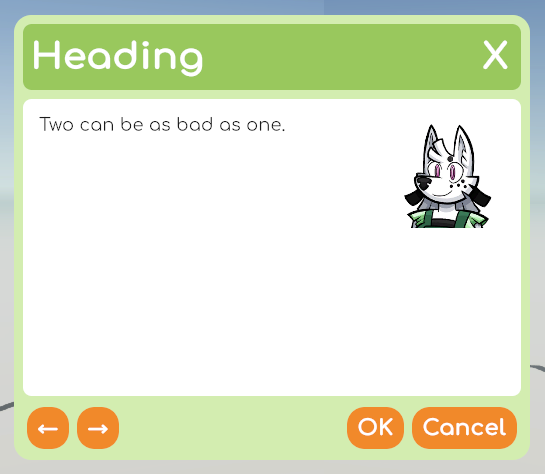
Each one has a game object in the hierarchy. They’re almost identical:
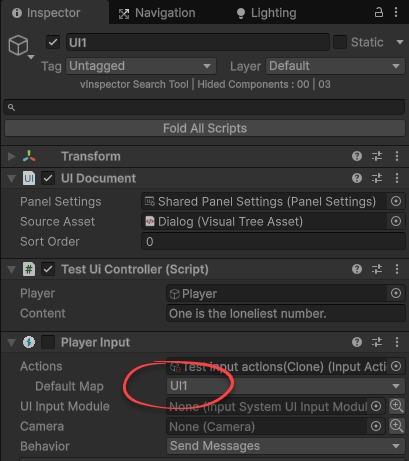
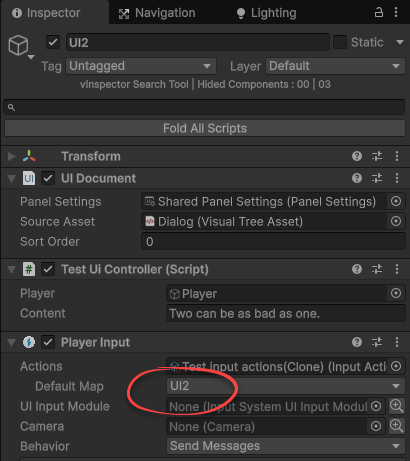
They both have a UI Document with the same Dialog asset. Test UI Controller is a script we’ll look at soon. Player Input is part of the “new” input system. Both use the same action map asset. The only difference is the UIs use different default maps within the action maps.
Here are the two maps:
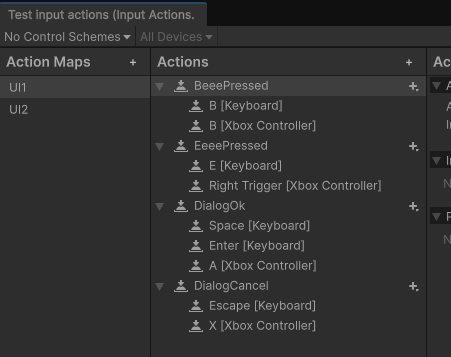
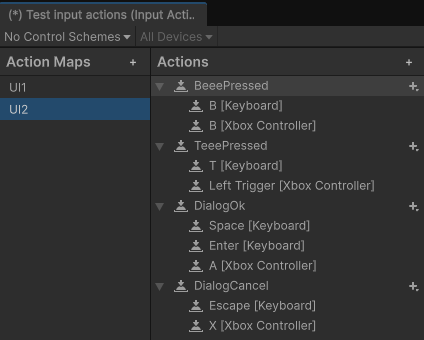
Behavior
I wanted any input to possibly have different effects in all three contexts: play, UI 1, and UI 2. Some inputs do the same in some contexts, but don’t have to.
In standard play, the game pad B button makes the player do a forward roll when moving. It logs a message for both UIs.
The game pad X button makes the character jump in standard play.
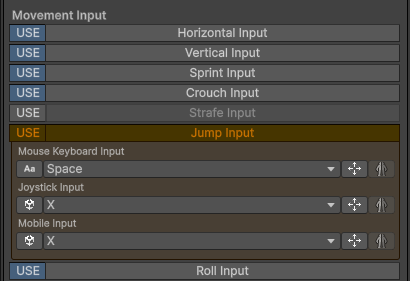
In the UIs, it closes the dialogs.
The keyboard E is Interact in play. It shows a message in UI1. It does nothing in UI 2.
The T key is unique to UI 2. It does nothing in the other input contexts.
As you can see, all three input contexts are independent of each other.
Code
There are two custom components. The first is TestCharacterController, attached to the player’s character. You can see it at the bottom:
public class TestCharacterController : MonoBehaviour
{
	// The UIs that can be opened.
	public TestUiController ui1;
	public TestUiController ui2;

	/// <summary>
	/// Show UI juan.
	/// </summary>
	public void JuanPressed()
	{
		Debug.Log("Juan Pressed");
		ui1.OpenMe();
	}

	/// <summary>
	/// Show UI too.
	/// </summary>
	public void TooPressed()
	{
		Debug.Log("Too Pressed");
		ui2.OpenMe();
	}

	/// <summary>
	/// An interact was input somehow.
	/// </summary>
	public void InteractPressed()
	{
		Debug.Log("Character interact");
	}

}
The class has three methods. Why three? Recall there are three child objects on the Player handing extra inputs:
Each one maps an input to one of the three methods. Here’s one:
This is the Interact game object. It maps inputs to TestCharacterController.InteractPressed().
Two of the methods call a UI controller:
/// <summary>
/// Show UI juan.
/// </summary>
public void JuanPressed()
{
	Debug.Log("Juan Pressed");
	ui1.OpenMe();
}
The second class manages the UIs. Each UI has the same class attached to it.
public class TestUiController : MonoBehaviour
{
	// InVector controller.
	public GameObject player;

	public string content;

	// UI toolkit stuff.
	private UIDocument _uiDocument;
	private VisualElement _root;
	private Label _content;
	private Button _okButton;
	private Button _cancelButton;
	private Button _backButton;

	// This UI's input grabber.
	private PlayerInput _playerInput;

	protected virtual void OnEnable()
	{
		// Player input for the GO this script is on.
		_playerInput = GetComponent<PlayerInput>();
		// Grab references
		_uiDocument = GetComponent<UIDocument>();
		_root = _uiDocument.rootVisualElement;
		// Set up buttons.
		_okButton = _root.Q<Button>("ok-button");
		if (_okButton != null)
		{
			_okButton.clicked += OnDialogOk;
		}
		_cancelButton = _root.Q<Button>("cancel-button");
		if (_cancelButton != null)
		{
			_cancelButton.clicked += OnDialogCancel;
		}
		_content = _root.Q<Label>("content");
		// Hide this UI.
		_root.style.display = DisplayStyle.None;
		// This UI takes no input..
		_playerInput.enabled = false;
	}

	/// <summary>
	/// Player did OK-ey thing. Key, GP button, clicky, whatevs.
	/// </summary>
	private void OnDialogOk()
	{
		Debug.Log($"{gameObject.name}: Ok");
		CloseMe();
	}

	/// <summary>
	/// Player did Cancel-ey thing. Key, GP button, clicky, whatevs.
	/// </summary>
	public void OnDialogCancel()
	{
		Debug.Log($"{gameObject.name}: Cancel");
		CloseMe();
	}

	/// <summary>
	/// Show the UI.
	/// </summary>
	public void OpenMe()
	{
		// Turn player off.
		player.SetActive(false);
		// Show the content.
		_content.text = content;
		// Show the UI.
		_root.style.display = DisplayStyle.Flex;
		// All input to this UI.
		_playerInput.enabled = true;
		// Cursors!
		Utilities.UnlockCursor();
	}

	public void CloseMe()
	{
		// Hide the UI.
		_root.style.display = DisplayStyle.None;
		// This UI gets no more input.
		_playerInput.enabled = false;
		// Player back on.
		player.SetActive(true);
		// Cursors!
		Utilities.LockCursor();
	}

	/// <summary>
	/// A B, somehow!
	/// </summary>
	public void OnBeeePressed()
	{
		Debug.Log($"{gameObject.name} Beee Pressed");
	}

	/// <summary>
	/// A E, somehow!
	/// </summary>
	public void OnEeeePressed()
	{
		Debug.Log($"{gameObject.name} Eeee Pressed");
	}

	/// <summary>
	/// A T, somehow!
	/// </summary>
	public void OnTeeePressed()
	{
		Debug.Log($"{gameObject.name} Tee");
	}
}
The most interesting code is that which opens a UI:
/// <summary>
/// Show the UI.
/// </summary>
public void OpenMe()
{
	// Turn player off.
	player.SetActive(false);
	// Show the content.
	_content.text = content;
	// Show the UI.
	_root.style.display = DisplayStyle.Flex;
	// All input to this UI.
	_playerInput.enabled = true;
	// Cursors!
	Utilities.UnlockCursor();
}
It turns off the Player game object, the one with the InVector controller. This prevents the controller from receiving any input.
It shows the UI, and turns on its Player Input component. Only this UI will get an input.
When the UI closes, it turns the player back on, and its own input back off, as was done in OnEnabled().
public void CloseMe()
{
	// Hide the UI.
	_root.style.display = DisplayStyle.None;
	// This UI gets no more input.
	_playerInput.enabled = false;
	// Player back on.
	player.SetActive(true);
	// Cursors!
	Utilities.LockCursor();
}
Bottom line: only one game object at a time grabs all input. Each input context is independent of the others.
One problem is the action maps for UI 1 and UI 2 share much configuration. There is no doubt a way around this, but it works for me.